As someone who spends a lot of time editing photos in Lightroom Classic, I’ve always appreciated tools that help me stay focused on the creative side of photography. I tested the TourBox Elite Plus not long ago and was quite impressed with how it helped me edit in Lightroom Classic.
Lightroom is an incredibly powerful tool, but the editing process can still feel repetitive at times. Jumping between panels, searching for specific controls, and constantly moving the mouse back and forth across the interface can interrupt the flow of editing, especially when working through a large photo library.
That is where TourBox Dynamic Panel V2 becomes interesting. Instead of treating TourBox as just a shortcut controller, Dynamic Panel V2 turns the hardware and software into a more complete Lightroom editing workspace. The goal is simple: keep the photo front and center, reduce interface distractions, and make Lightroom editing feel more visual, tactile, and immersive.
If you want a faster and more natural way to edit in Lightroom Classic and Lightroom, Dynamic Panel V2 is absolutely worth checking out.
A Workflow That Keeps Your Eyes on the Photo
One of the biggest challenges in Lightroom editing is that many of the controls are spread across different panels and sections. I often find myself navigating the interface instead of evaluating the image itself.
The biggest advantage of Dynamic Panel V2 is the full-screen editing experience. In Lightroom and Lightroom Classic, photographers can hide the native panels and keep the image as the main focus. Instead of constantly looking to the side of the screen for sliders and controls, the Dynamic Panels appear only when needed and can be placed wherever they feel most comfortable.
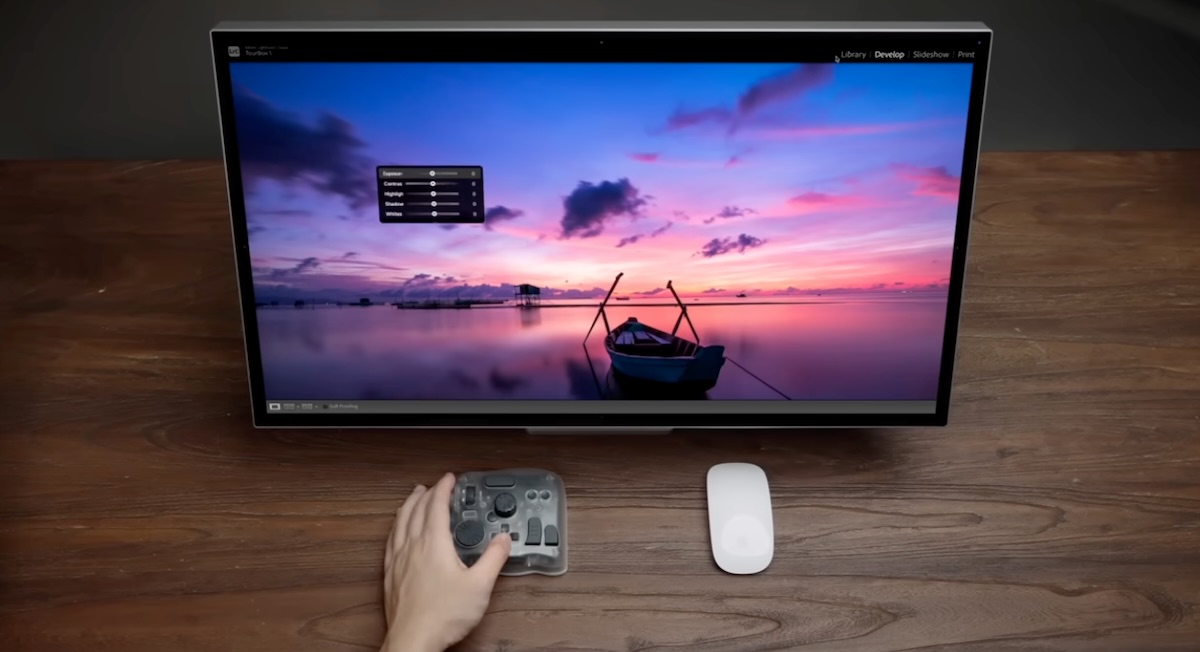
This makes a real difference during an editing session. Whether I want to apply a preset, adjust tone, refine the tone curve, work with color grading, use the Color Mixer, edit masks, or use the Remove tool, I can bring up the corresponding floating panel with TourBox while keeping the photo in full view.
That makes the whole process feel more immersive. I can stay focused on the image instead of thinking about where a particular control is located, and that focus is extremely important for photographers. It sounds like a small difference, but over the course of an editing session, it creates a much smoother and more enjoyable experience.
Dynamic Panel V2 also works well across different stages of the Lightroom workflow. With Smart Workspace Switching, TourBox can recognize whether I am in Library or Develop and automatically adapt the layout. This means I can use different TourBox presets for different parts of the workflow instead of trying to cram every command into one setup.
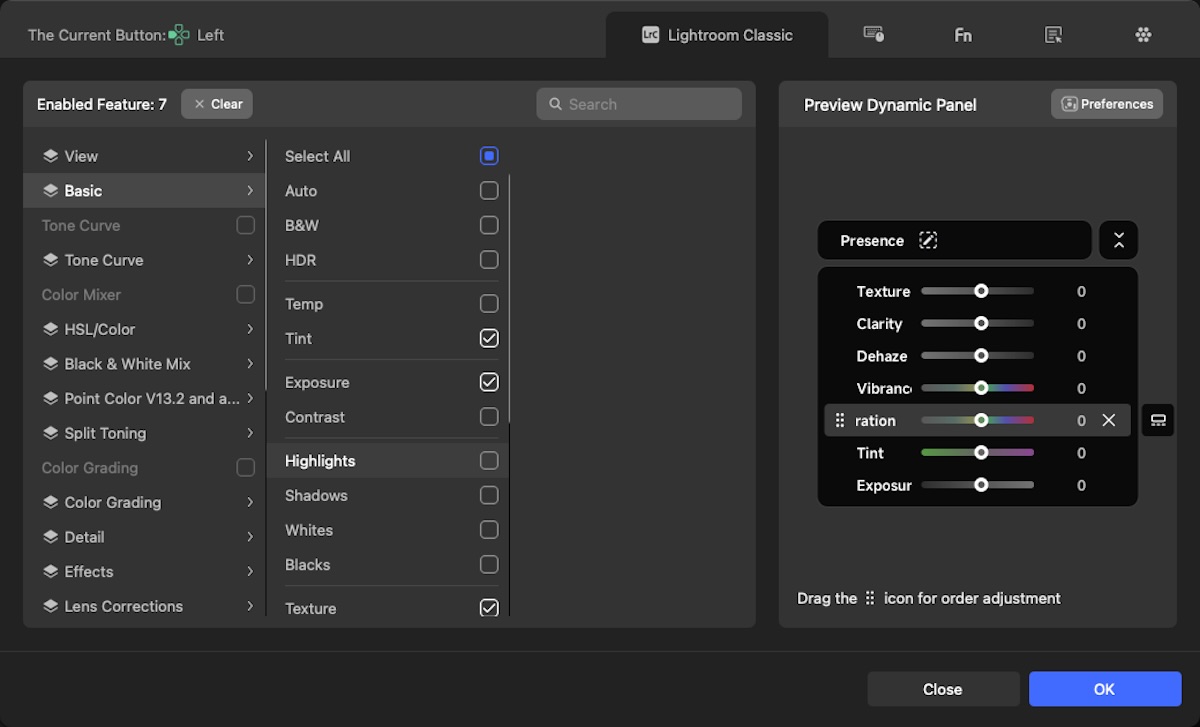
Another major advantage is customization. The Dynamic Panels can be customized, so I can create a panel that fits the way I actually edit. I do not use every single Lightroom slider every day, and I assume most photographers have their own habits as well. Being able to choose the controls I want, organize them, and keep the most important adjustments close at hand is a huge plus.
More Natural Lightroom Editing
Dynamic Panel V2 introduces a more visual way to interact with Lightroom’s controls, and that makes the editing process feel more natural. The mouse is useful for navigating a computer, but repeated click-and-drag adjustments can become tedious during long editing sessions. With TourBox, those repetitive actions are replaced by a more tactile experience using the knobs, dial, scroll wheel, and buttons.
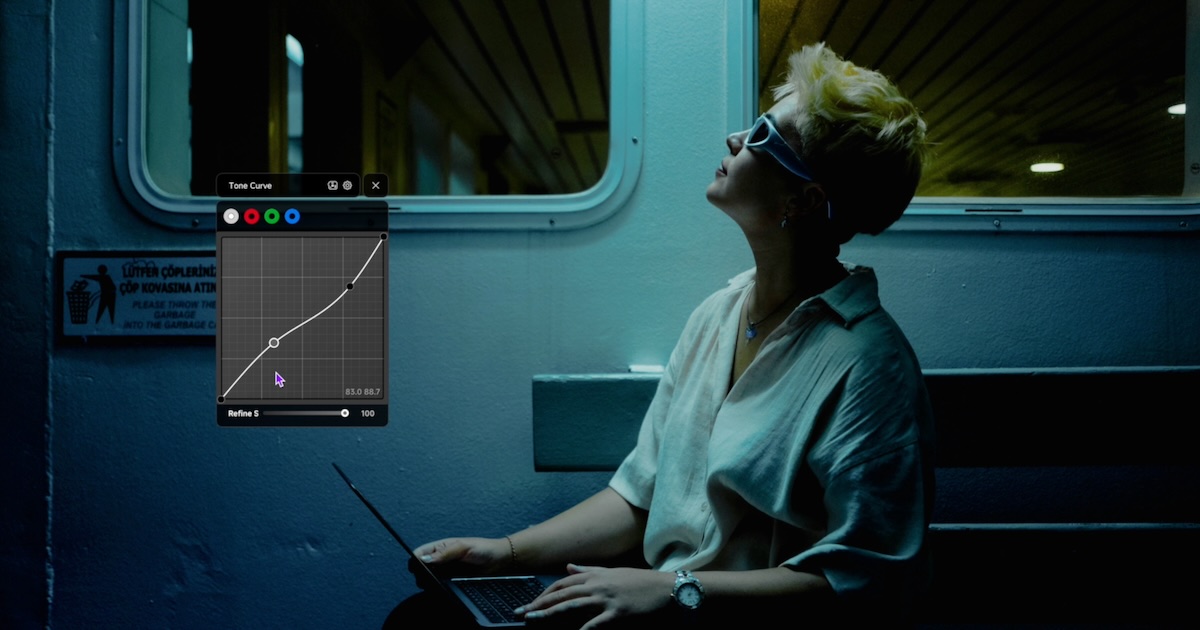
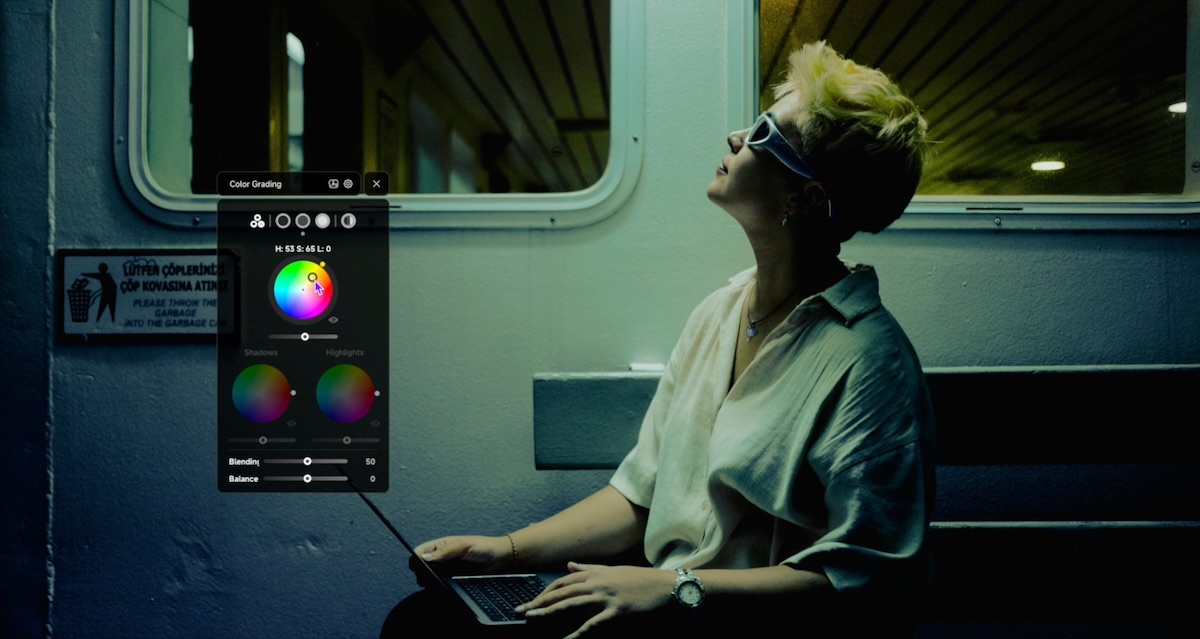
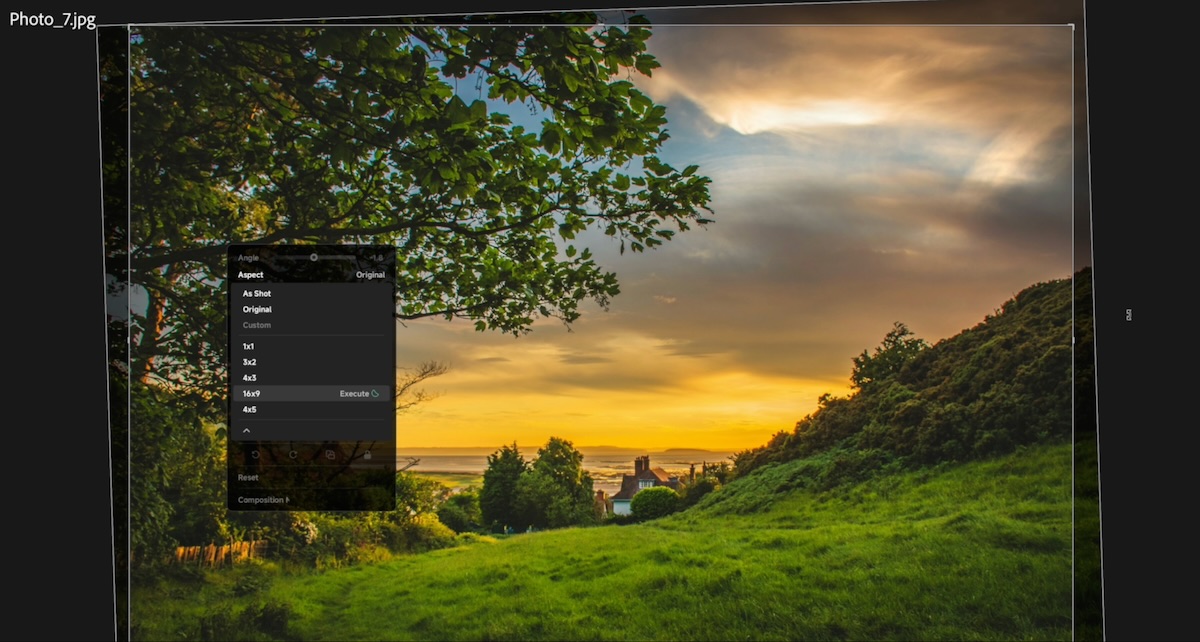
The previous Dynamic Panel was already powerful enough to support many of the adjustments photographers commonly use. With Dynamic Panel V2, the workflow feels much more complete thanks to the new Tone Curve Panel, Color Grading Panel, Advanced Crop Panel, and Preset Panel. Personally, I see this as a major update because it covers more of the real Lightroom editing process from start to finish.
The Live Preset Preview is one of the most useful additions. It allows you to scroll through your favorite Lightroom presets and see the result on your image in real time. Instead of digging through nested preset folders or clicking back and forth to compare looks, you can preview styles quickly and apply the one that works.

The Tone Curve Panel and Color Grading Panel also make precise adjustments feel more intuitive. Instead of carefully aiming at tiny points or sliders with a mouse, you can hover over a color wheel, slider, or curve and use the TourBox dial or scroll wheel to make adjustments. It gives the process a more controlled and physical feeling.
The Advanced Crop Panel is another strong addition. It makes cropping, composition, angle adjustment, position, and scaling much quicker to handle. The Composition Mode is especially interesting because it gives photographers a more natural way to fine-tune the frame without constantly switching between the mouse and keyboard.
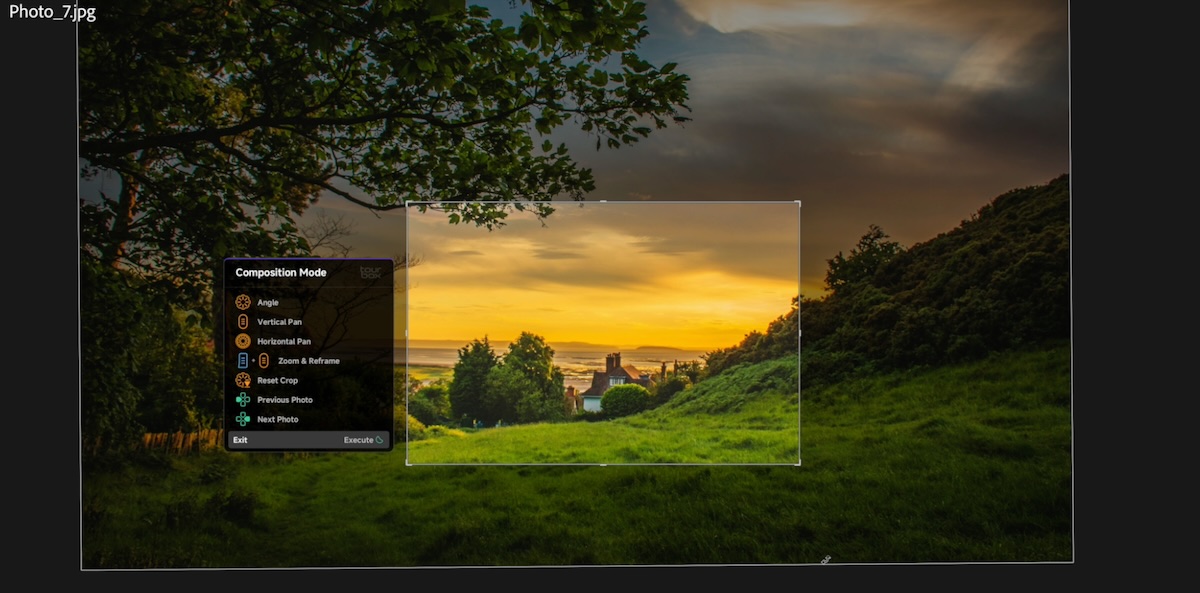
Together, these panels make Dynamic Panel V2 feel less like a single feature and more like a complete Lightroom workflow system.
Conclusion
The important part is that Dynamic Panel V2 is not just software floating on top of Lightroom. It is designed to work with the TourBox hardware. The knobs, dial, scroll wheel, and buttons give photographers tactile control, while the Dynamic Panels provide the visual editing interface. That combination is what makes the experience feel different from simply using Lightroom shortcuts.
By providing faster access to essential controls, reducing unnecessary navigation, and creating a more visual full-screen editing environment, Dynamic Panel V2 helps Lightroom feel more responsive to the photographer’s creative process.
If you already use Lightroom Classic or Lightroom as part of your photography workflow, TourBox Dynamic Panel V2 rethinks how photographers interact with Lightroom. It creates an editing experience that feels faster, smoother, more focused, and more enjoyable.