Galaxy Grand Duos came out to be the best seller in low to mid segment last year and after seeing the huge success of this device Samsung has released newer version this device with improved specifications which includes quad core processor, 720p screen and more. but what about the older Galaxy Grand? The owners of Grand Duos are on Android 4.1.2 and after updating to this version device has started to lag.
But with the release of Android 4.4 KitKat Google said this version is light and supportable for devices having minimum RAM of 512MB. Grand users are eagerly waiting for this update but to be honest it’s going to take a little while before you could do that and those who can’t wait this long you guys can root your device and install a custom ROM. In this guide you will get to know how to root your device while in next article you will get to know to install a custom ROM running on Android Kitkat.
Downloads
You need following files before you could begin rooting your device.
Rooting Procedure
- Before you began rooting make sure your phone have enough juice in the battery because if it runs out then your phone may get bricked. Also transfer the SuperSU file in your phone’s storage.
- Boot into Download Mode with the help of combination of volume down, home and power buttons and for that you will have to power off your device. After booting into download mode press volume up button to confirm.
- Install Odin on your system and start the software then head over to PDA and look for CWM zip file which you downloaded earlier.
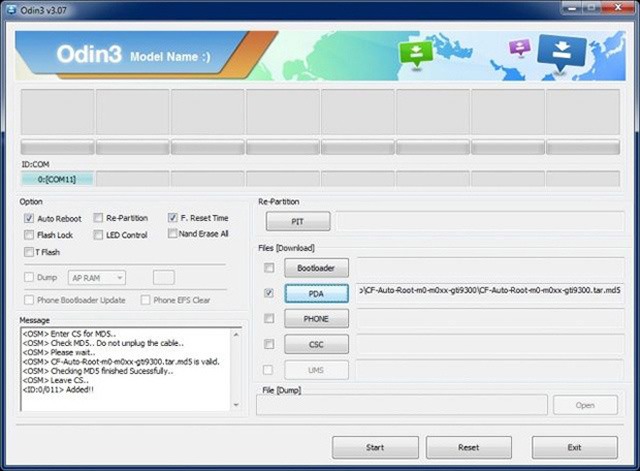
- Click on start button but before doing that make sure auto reboot and Factory reset are ticked.
- If the process passes, phone will reboot now again switch off your device and this time you will have to boot into recovery mode and for that you will have to use combination of Volume up, home and power button.
- Tap on Install from SD card and select the file which you transferred to your device earlier.
- Now in case you want that flash counter doesn’t show up install that triangle app and click on reset button.
- And your phone is rooted.
Now you can install apps which require root access or even a custom ROM. If you know how to do that its great otherwise wait for my next article in which I will tell you how to do the same. If you find this article useful make sure to share it on all social networks. In case you are facing any trouble don’t hesitate to ask out.