Getting the latest updates of current events nowadays has never been faster, no small thanks to the technology behind RSS (Really Simple Syndication) and Atom feeds.
For users seeking the quickest and snappiest method to keep them posted of news information as it happens, there’s the Nokia Asha Touch that supports the News Reader, a mobile app that downloads and posts new articles from a news server.
This smartphone application reads articles on Usenet, a distributed discussion system that stacks up contents into groups categorized according to their subject. News Reader connects to news servers via the Network News Transfer Protocol (NNTP) to bring to the fingertips of users the latest news feeds. With the ever-increasing list of portals to news websites for instant reading while you sip a cup of tea, how does the News Reader on Nokia Asha Touch stand out?
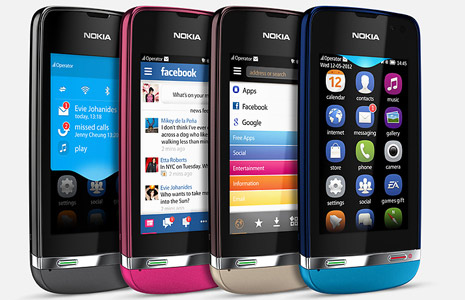
Perhaps the answer lies in the efficiency that comes from using the app and the lower cost incurred in following the headlines while on a mobile device. With News Reader, you never have to download an entire webpage, which could consume a portion of your phone’s memory. Furthermore, you have the option whether to download an image that tags along an article, and how many articles you wish to enter your feed.
Setting up the feeds
Before fully enjoying the News Reader app, you need to add first your RSS feeds to begin the set up. This step requires no effort as you will be prompted by a message on the screen saying you need to tap the “ADD” button. RSS feeds of your favorite news website come in different categories – breaking news, sports, opinion, entertainment, technology and lifestyle – allowing you to choose what event you want to keep track of. After typing in your chosen feeds click on “Tick” to save your preferences.
Tap the wedge icon on the upper left of the News Reader to tweak your settings, add more feeds and manage your feed library. The settings page lets you control how images load, how many stories to download (50, 100 or 200) and set the font size. Access your feed library to manage the stories you want to see on your feeds. For instance, you can disable the stream of irrelevant sports news feeds when the event is over, and resume subscribing to it again when the season starts at some other time.Adding the RSS feeds should take place only once to get rid of the burden of having to enter the URL repeatedly. You can now start reading your feeds at your convenience. The feeds come with the headline and the lead paragraph of the story for an overview of the article. Unread feeds, on the other hand, remain in bold font until you read them.
Unlike most other news feed applications that turn in stories only from specific websites, News Reader brings a throng of sources all to your Nokia Asha handset without consuming much of the gadget’s memory space.