If you’ve somehow locked yourself out of your Mac and can’t remember the password, or you have recently purchased a used Mac from someone and don’t know the password, don’t fret. There is a way – actually, two ways – you can change the password without knowing the existing one. If you have your Installer Disk, use Option 1. If you don’t have the disk, use Option 2. This should work on all Macs.
Option 1
The easiest way to change the password is to use the Installer Disk that came with your computer. Insert it into your drive. Close the dialog box that opens, and then restart your Mac. When you hear the chime, press and hold down the Option key until you see the “Boot” screen.
Using your arrow keys, move the selection box over to the image of the disk and press Enter. This will instruct your Mac to load the disk, and it could take a few minutes. Be patient.
Once loaded, you can use the arrow keys to choose the language and hit Enter.
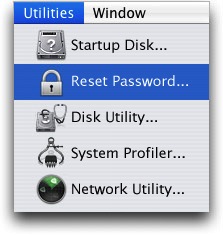
In the top left-hand corner you’ll see a file menu. Click on Utilities -> Reset Password. Then click on Mac HD and choose which User password you want to change. Type in your new password and hit Save.
The final step requires you to restart: go to the menu at the top of the screen and click on “Mac OS X Installer” and then click “Quit mac OS X Installer” and then click “Restart“. Once your Mac restarts, you should be able to use the new password.
Option 2
If you don’t have the disk, don’t worry, there is a way to reset the password without the Installer Disk. It just involves a little coding. Don’t panic, it’s easy!
Shut down your Mac. Hold Command + S as you press the Power button. This loads your Mac so you’ll see a command line. Type in the lines below, exactly as shown. Hit Enter after each line.
/sbin/mount -uw /
launchctl load /System/Library/LaunchDaemons/com.Apple.DirectoryServices.plist
Next, type in the command below, but where it says “username password” type in the name of the user, then a space, then the new password.
dscl . -passwd /Users/username password
So, for example, mine is
dscl . -passwd /Users/Berry 7711gjk (username Berry, space, then password 7711gjk)
Type in “exit” then hit Enter.
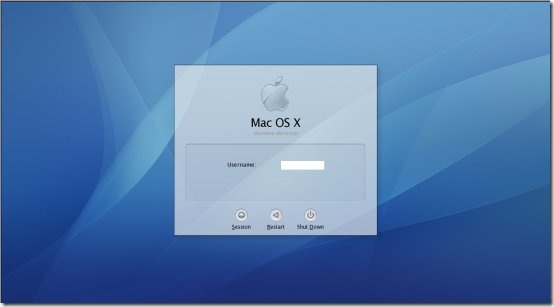
Your Mac should load the login screen. Click on the user you just changed and log in with your new password.
Congratulations, you’ve just reset your password without knowing the old one! If you need a video tutorial, there are several on YouTube.